Folders · Albums · Calendar

Your photos,
finally in order

An iOS app that sorts your scattered photos into folders and albums. All the analysis and organizing happens right on your device — your photos are never sent to a server.

Download on theApp Store iOS 18 or later · Free
On-device processing Originals untouched Free to start
PhotoChagok home screen showing a list of photo folders on iPhone

Your photos never leave your device.

Photo analysis (Vision) and album title generation (Apple Foundation Models) all run on your device. Your folders and albums are saved only as files on your device — never synced to a server or the cloud.

On-device AI analysis
Photos & analysis never uploaded
Originals never altered
FEATURES

Exactly as much organizing as you need

Sort your real photo library into folders and albums, and find them again when you need them.

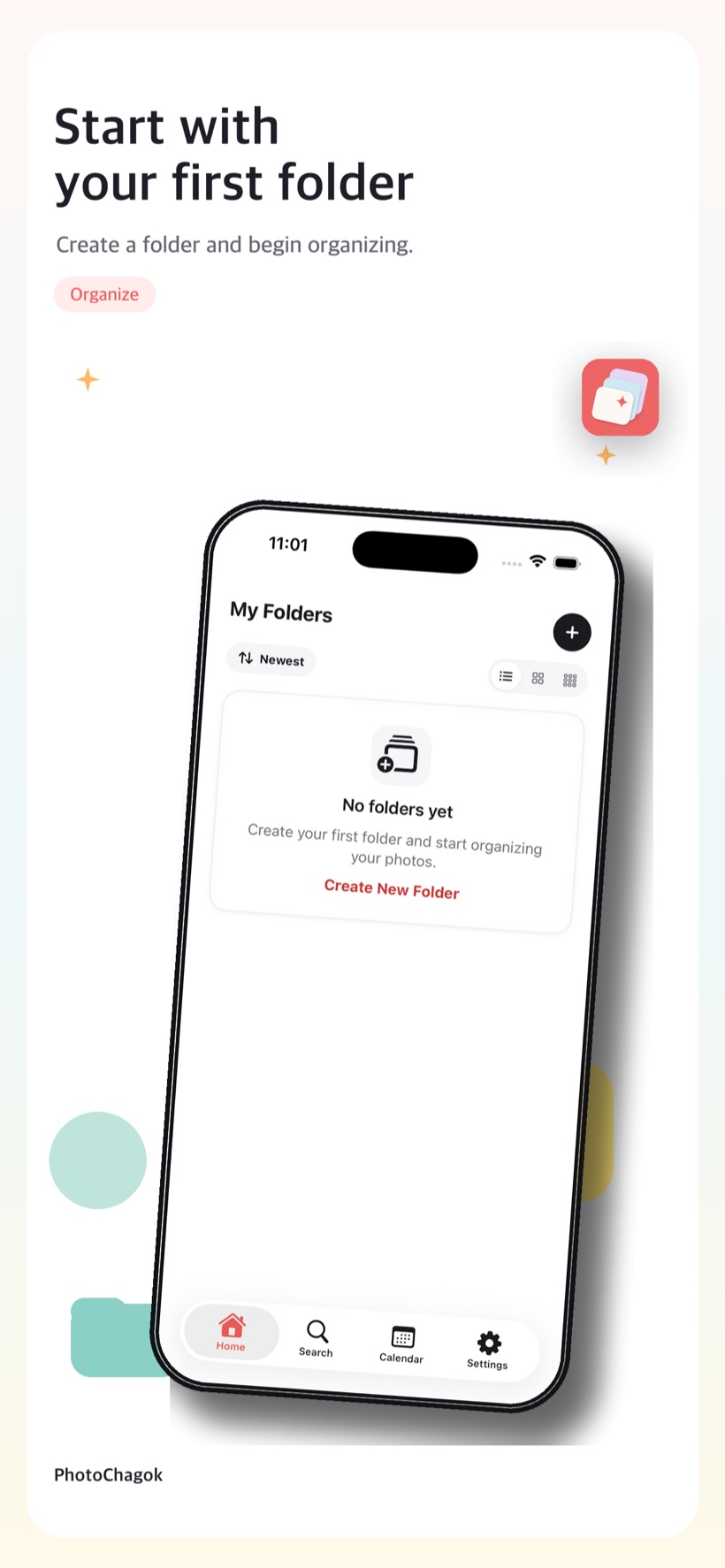
Folder → Album → Photo

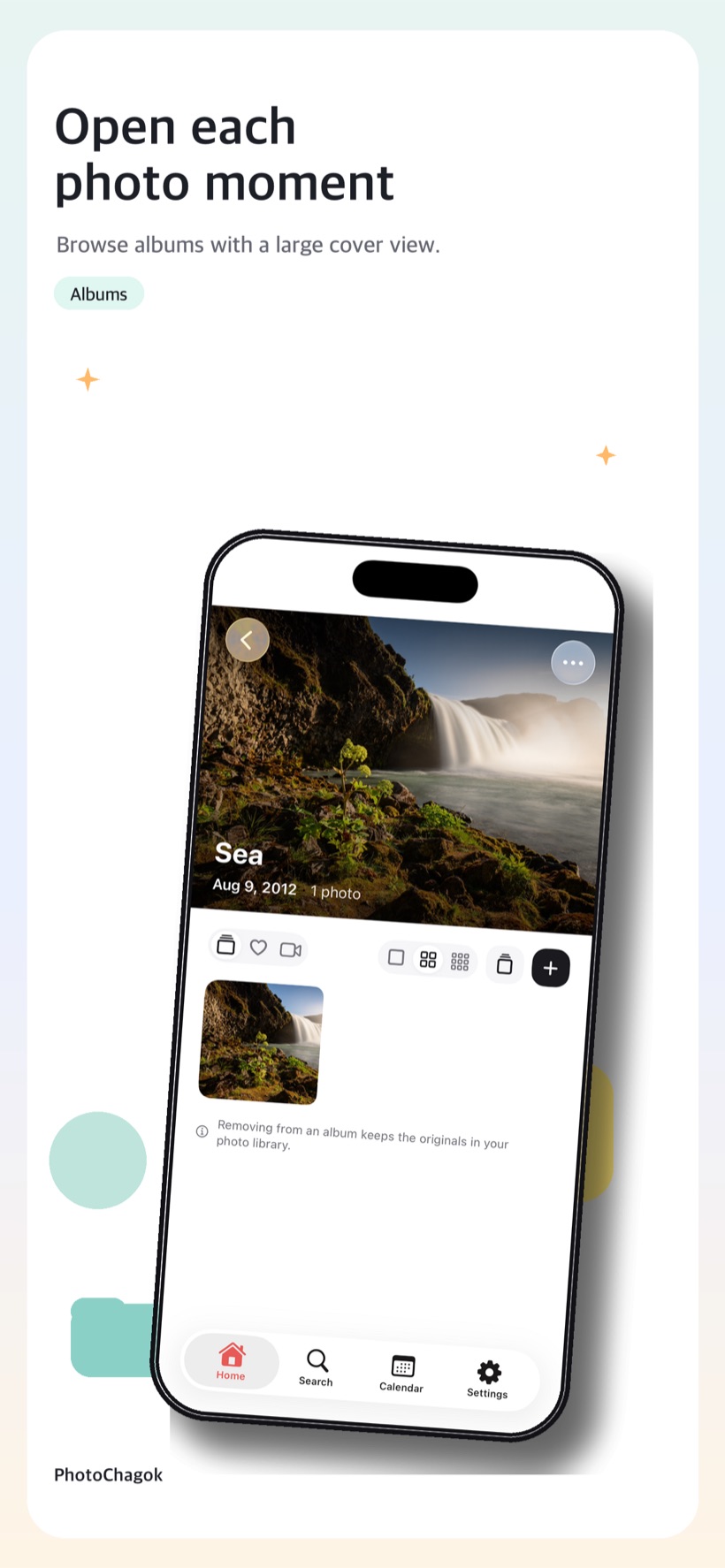
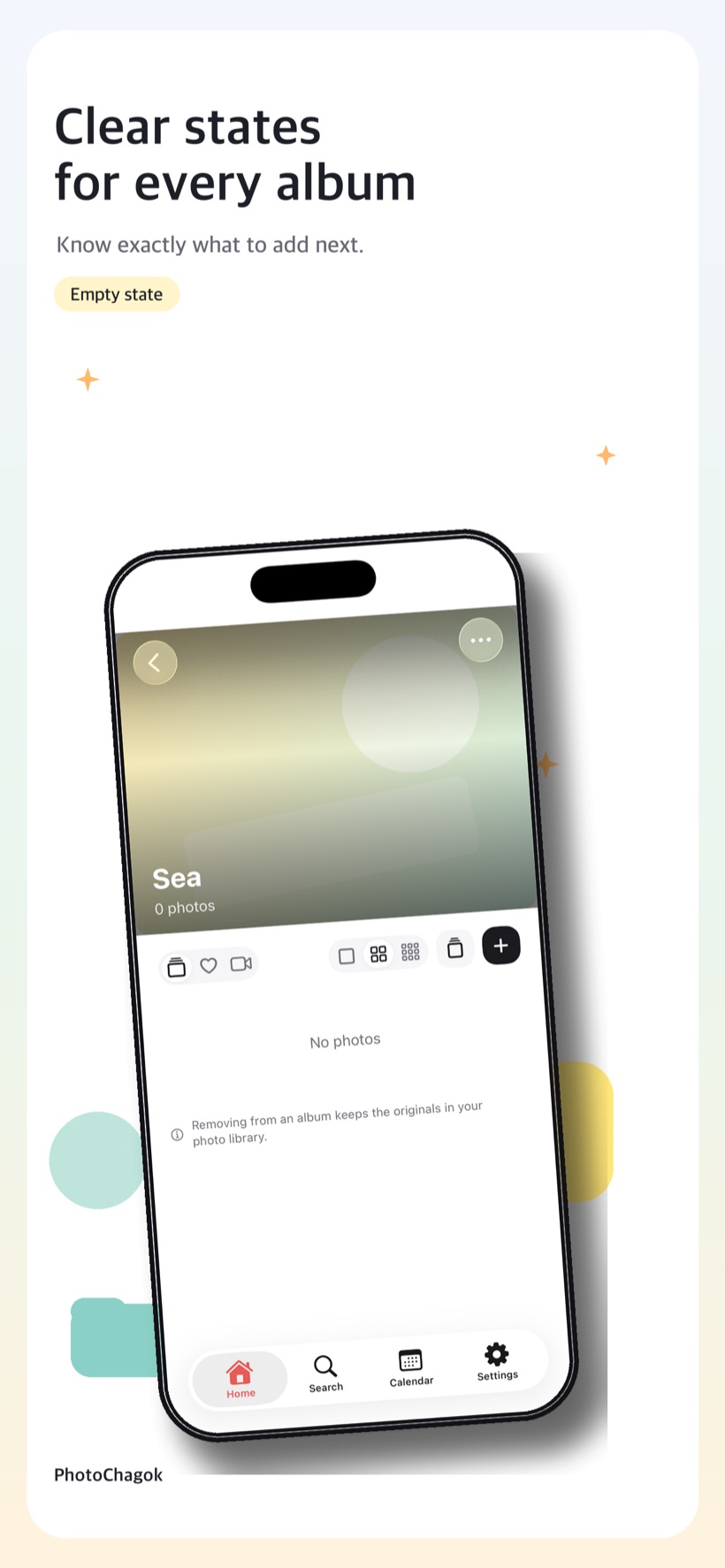
PhotoChagok loads your real library through PhotoKit and organizes it into three layers — folders, albums, and photos. Browse as a list, grid, or 3-column view, sort by newest, oldest, or name, and when you add several photos at once, ones already in the album are skipped automatically.
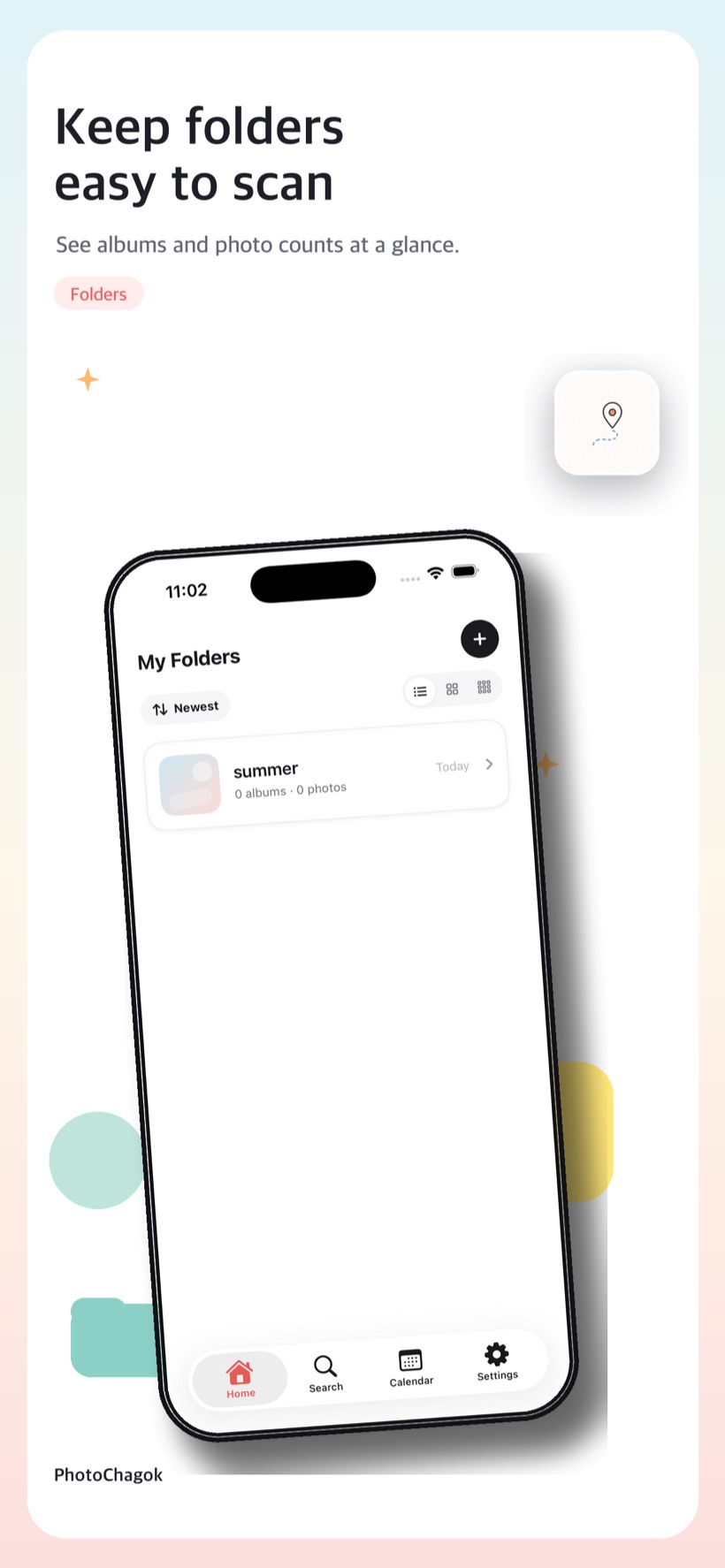
Folder list screen

AI album suggestions

On-device Vision picks the photos that fit each folder and suggests album candidates. It filters out screenshots, burst shots, and utility captures to keep only the highlights, and titles come from Apple Intelligence on supported devices — or an on-device template otherwise. It never guesses people or places that aren't in the photo.

Look back by calendar

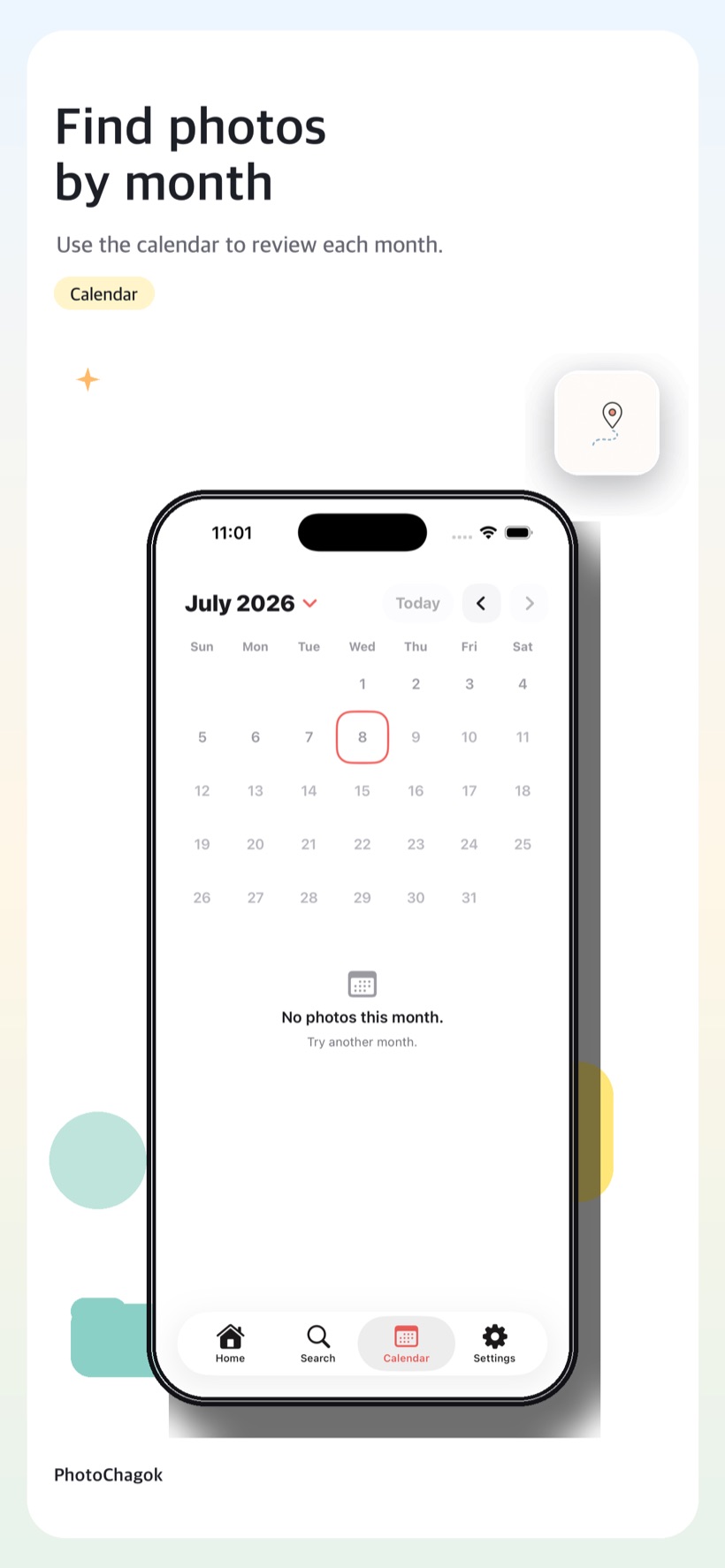
Open your photos by the day they were taken, then pick from them to drop straight into an album. See a whole month of photos at a glance.

Search by name

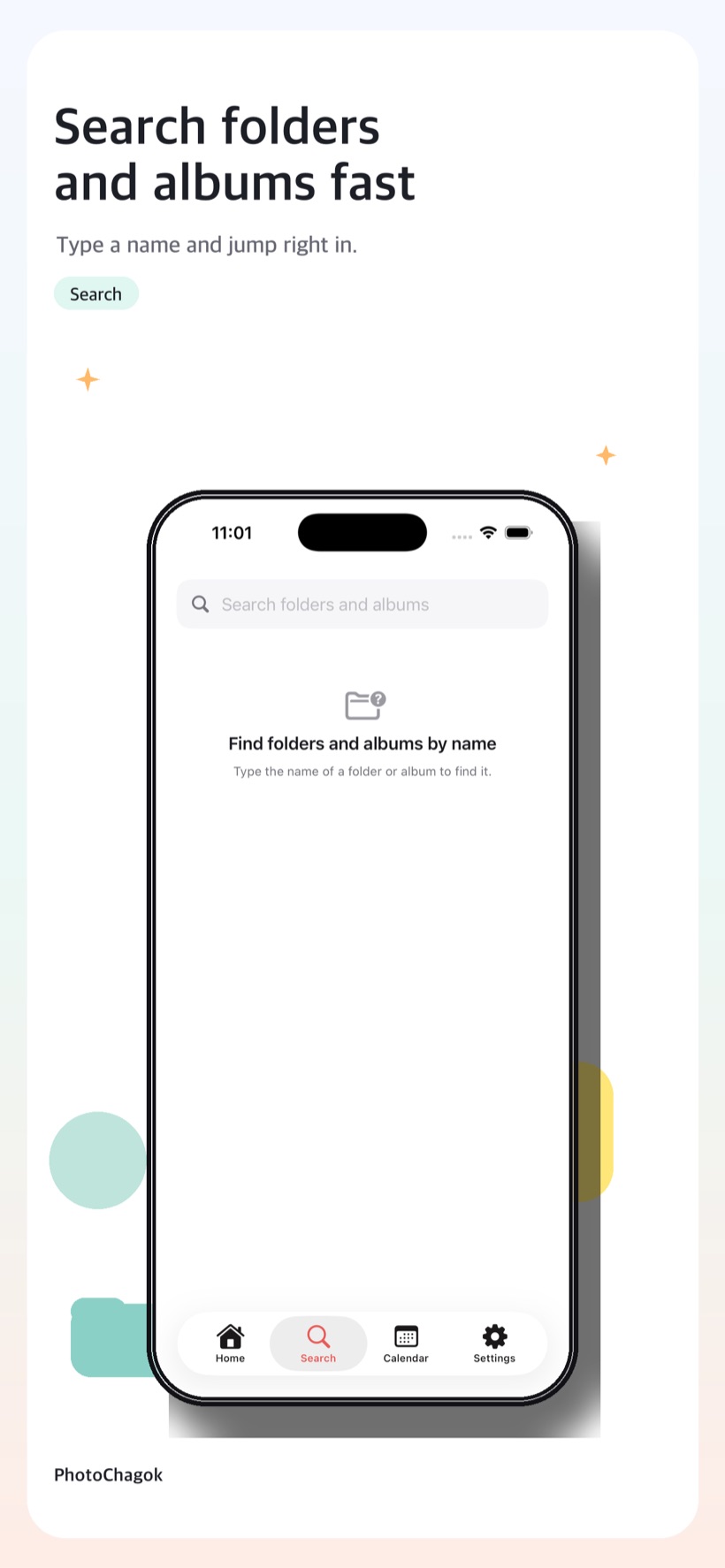
Find folders and albums by name and jump right back to the organizing you want.

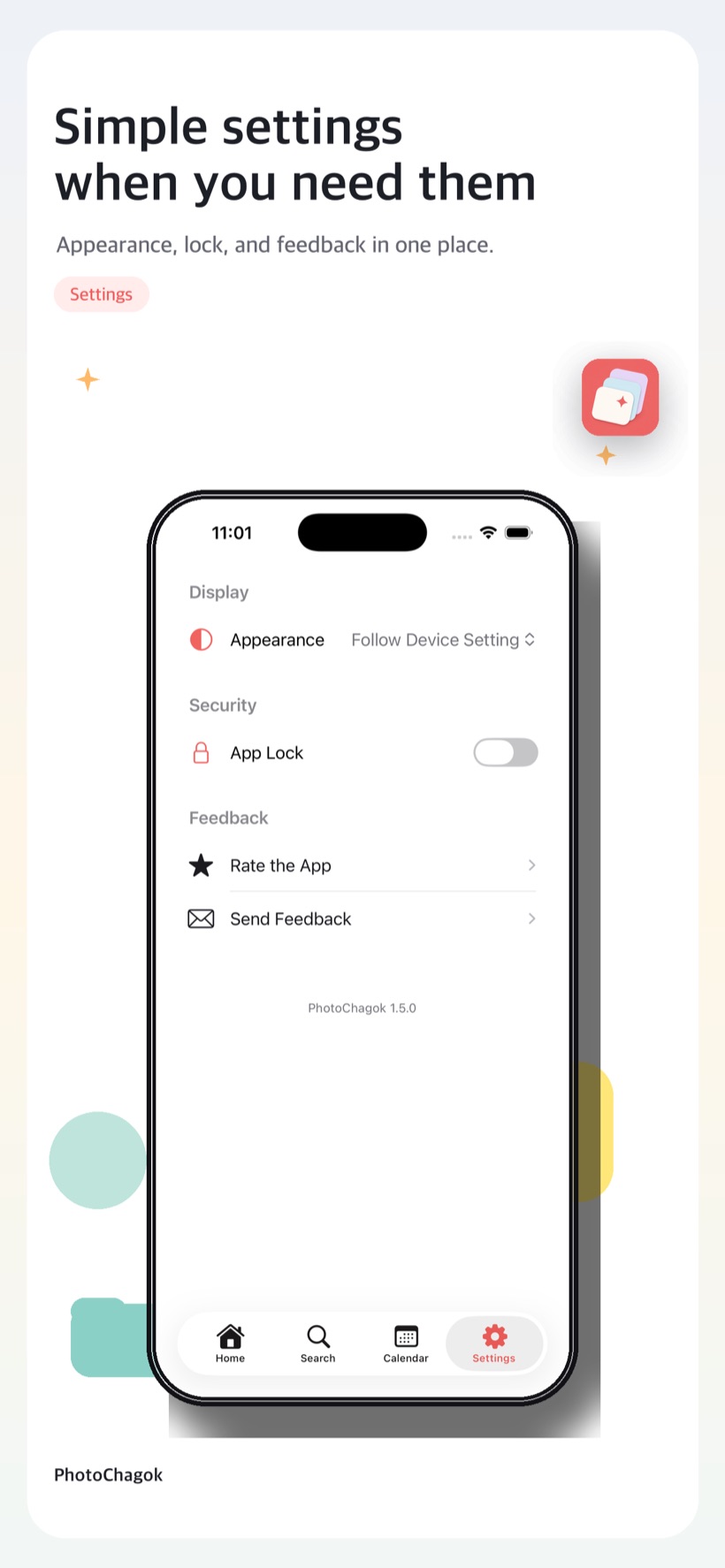
App lock

Lock the whole app with a 6-digit PIN and Face ID or Touch ID. It locks the moment the app moves to the background, and the PIN is stored only as a hash in the device's secure storage.

Originals protected

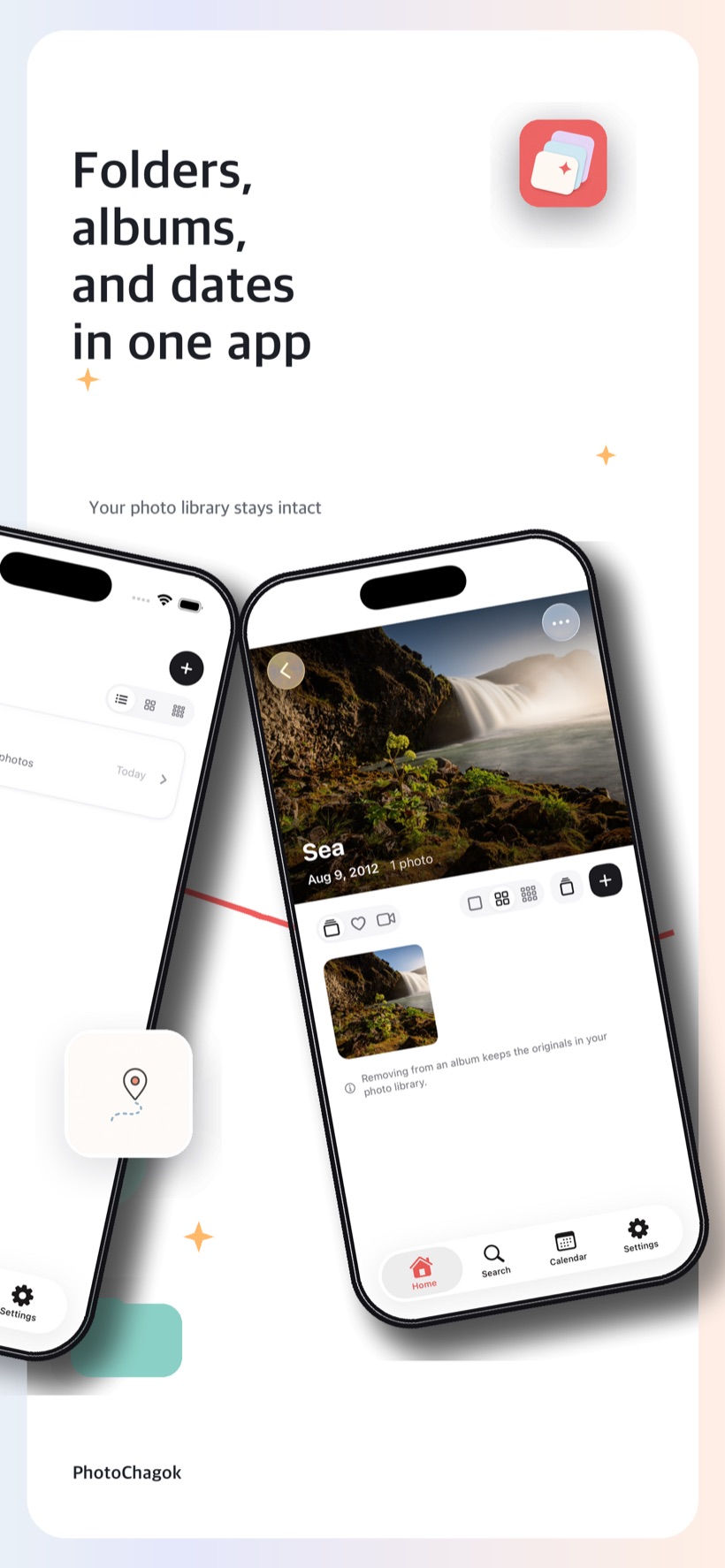
Organizing happens only in the app's own albums, so your Apple Photos library stays intact. Removing a photo from an album is kept separate from deleting the original, and deleting an original always goes through the iOS system confirmation.

TAKE A LOOK

See the screens first

HOW IT WORKS

Three steps and you're organized

Create a folder and fill it

Make folders by theme and sort your library photos into them. Start light with your very first folder.

Group into albums

Create albums yourself, or let AI album suggestions pick the highlights and group them fast.

Find it again

Look back by calendar or search by name to reopen any organizing, anytime.

Start tidying your
photos today

Free on iOS 18 and later. Organizing stays on your device; your originals stay put.